 Bulin 47 AI
Bulin 47 AI Crop Image Online with Precise Framing
Bulin 47 AI Crop Image processes pictures in your browser after sign-in. Inputs and results are uploaded to your account for task review. No subscription, credit deduction, or paid cloud model is required. Keep your source and inspect the result before using it elsewhere.
Crop Image workspace
Drop or paste a JPG, PNG or WebP · up to 30 MB
Up to 8192 pixels per side and 32 megapixels
Free · Sign in to process · Inputs and results are saved to your account.
Introduction
What Is Bulin 47 AI Crop Image?
Bulin 47 AI Crop Image keeps only the area you select and removes everything around it. Choose a photo with someone standing at the edge, draw a box around them, and save that section instead of making the entire picture smaller.
Bulin 47 AI Crop Image: Bring attention to the intended subject
A useful photograph can contain more surrounding space than a design needs. Bulin 47 AI Crop Image lets you choose a tighter frame around the relevant area, whether you are preparing an illustration for an article, extracting a product detail, or simplifying a busy composition.
Choose Bulin 47 AI Crop Image when the original already contains the picture you need. Cropping removes content outside the selection; it does not erase an unwanted object inside that selection. It also cannot extend a photograph beyond its original edges or recover something that was never captured.
- Keep the portion that supports the intended message.
- Leave important details comfortably inside the selected region.
Bulin 47 AI Crop Image: Work with the source on your device
Bulin 47 AI Crop Image processes pictures in your browser after sign-in. Inputs and results are uploaded to your account for task review. No subscription, credit deduction, or paid cloud model is required. Keep your source and inspect the result before using it elsewhere.
Keep that original rather than relying only on the final crop. Bulin 47 AI Crop Image cannot put excluded pixels back into a downloaded cropped file. A wider source gives you options when the destination changes from one aspect ratio or layout to another.
- Bulin 47 AI Crop Image processes pictures in your browser after sign-in. Inputs and results are uploaded to your account for task review. No subscription, credit deduction, or paid cloud model is required. Keep your source and inspect the result before using it elsewhere.
- Keep the original for future crops and different layouts.
How to use
How to Use Bulin 47 AI Crop Image
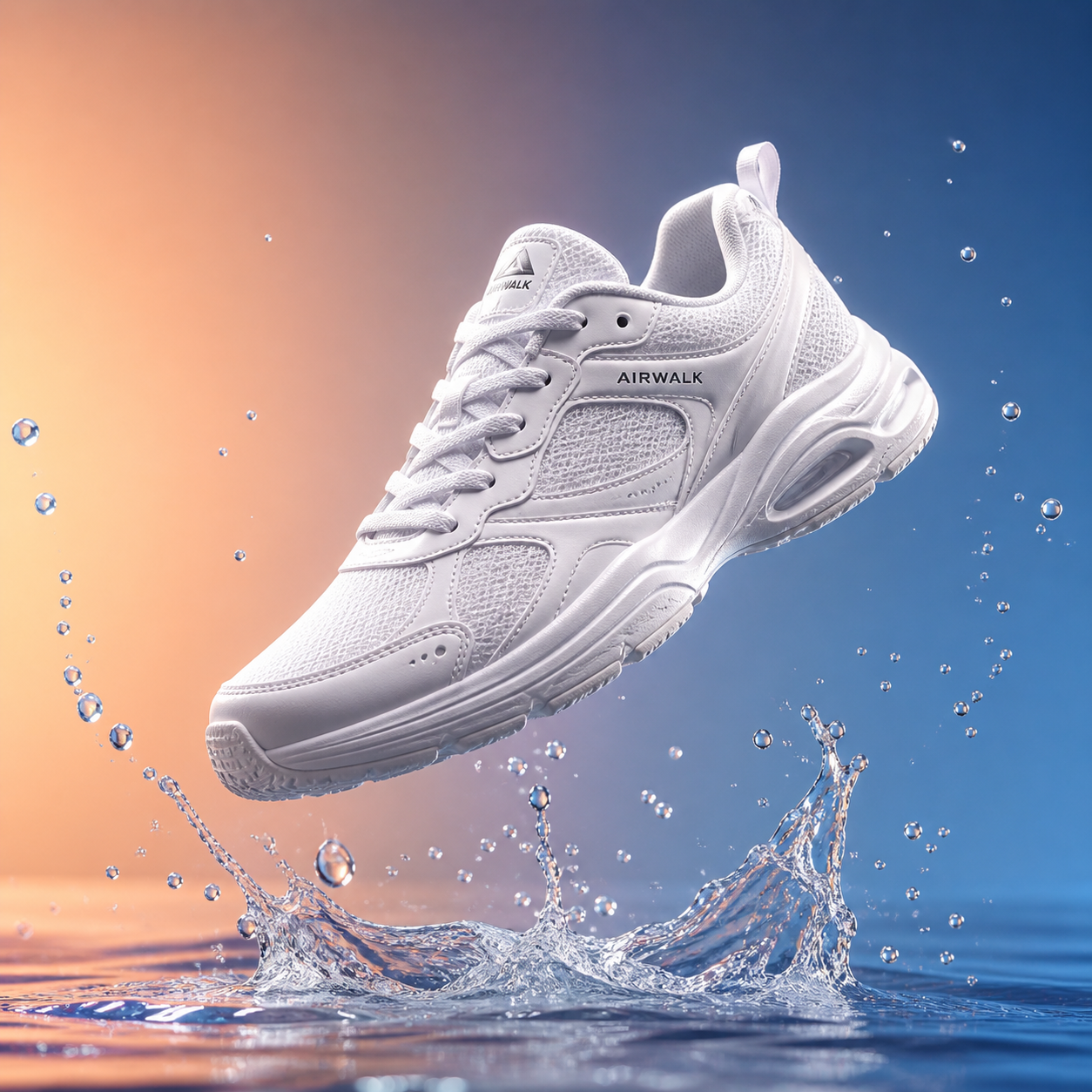
- Beforebag.jpg
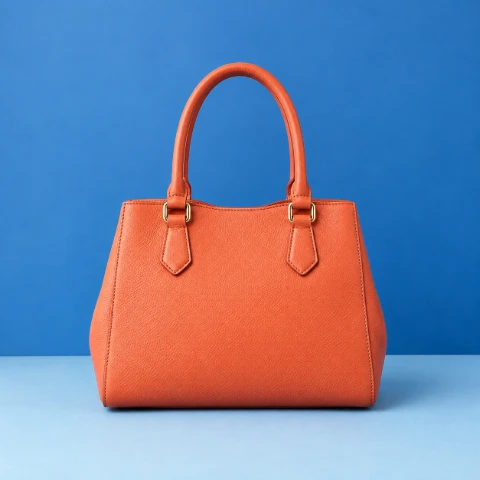 1254 × 1254 px1.63 MBSTEP 1
Bulin 47 AI Choose the source picture
Open Bulin 47 AI Crop Image and select a supported local JPG, PNG, or WebP file. Check that the full source meets the file-size and pixel limits.
- 1:1 4:316:91003 × 1003 pxSTEP 2
Bulin 47 AI Set the frame shape
Choose an available ratio preset in Bulin 47 AI Crop Image or establish the selection dimensions directly. Think about the destination shape before committing to a tight crop.
- 1003 × 1003 pxSTEP 3
Bulin 47 AI Refine the retained area
Drag the selection and its eight handles in Bulin 47 AI Crop Image, then adjust X, Y, width, and height when needed. Inspect important details near every boundary.
- After
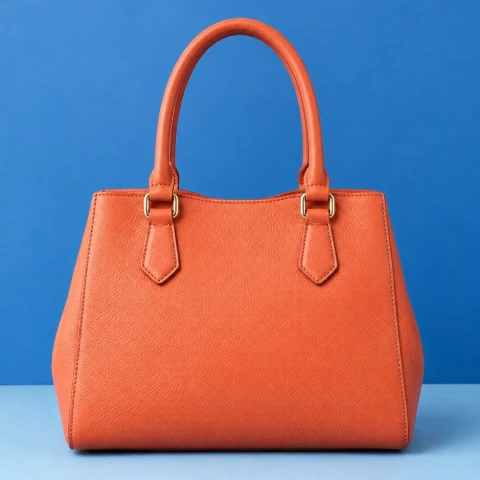 Before1003 × 1003 pxDownloadSTEP 4
Bulin 47 AI Review and download
Check the final selection in Bulin 47 AI Crop Image and download the cropped result. Keep the uncropped source so that excluded content remains available for future layouts.
Features
Bulin 47 AI Crop Image Features: Direct Selection and Exact Coordinates
Bulin 47 AI Crop Image supports visual framing and numeric control, so you can begin with an approximate composition and then make the retained rectangle more precise.
Bulin 47 AI Drag the box and use all eight handles
Move the selection box in Bulin 47 AI Crop Image to change which part of the source remains visible. The eight adjustment handles include the four corners and the midpoint of each edge, making it possible to reshape the retained region from several directions.
Use the handles in Bulin 47 AI Crop Image for a visual first pass, then inspect the subject near the selection boundary. A face, label, or hand placed too close to an edge can feel unintentionally cut off even when the overall ratio matches your destination.
- Move the selection to reframe the same source picture.
- Adjust from corners or edges using the eight handles.
Bulin 47 AI Enter X, Y, width, and height
Numeric fields in Bulin 47 AI Crop Image let you specify the selection position and size. X and Y describe the starting location, while width and height describe the retained rectangle. These controls are useful when a visual estimate is not precise enough for the task.
Treat the Bulin 47 AI Crop Image coordinates as source-image measurements, not the apparent size of a thumbnail on the page. A large picture can be displayed much smaller in the workspace. The selection values help you reason about actual retained pixels rather than screen space alone.
- Use X and Y to place the starting corner.
- Use width and height to define the retained area.

Bulin 47 AI Crop Image Features: Ratios and Better Composition Decisions
Bulin 47 AI Crop Image ratio presets establish the shape of the frame. They do not decide which subject deserves attention or guarantee that a particular destination will accept the download.
Bulin 47 AI Choose a frame shape before refining it
Select an available ratio preset in Bulin 47 AI Crop Image when the destination needs a particular shape. A preset gives the selection a consistent relationship between width and height, allowing you to concentrate on which part of the picture belongs inside that frame.
A ratio is different from an exact resolution. Bulin 47 AI Crop Image can produce selections of different pixel dimensions with the same proportions. Check width and height as well as the chosen ratio when another system specifies an exact size rather than merely a square or wide shape.
- Use a ratio preset to establish a consistent frame shape.
- Check pixel dimensions when the destination requires exact numbers.
Bulin 47 AI Balance a tighter frame against useful context
A tighter crop is not always a better one. Bulin 47 AI Crop Image can remove distractions, but it can also remove context that explains the scene. Compare the selected subject with its immediate surroundings and decide whether a little more space makes the image easier to understand.
For product details or screenshots, use Bulin 47 AI Crop Image to check that labels, controls, and supporting information stay complete. For photographs, watch the relationship between the subject and the frame edges. The tool provides selection controls, not automatic judgments about the most effective composition.
- Keep essential labels and explanatory context inside the frame.
- Inspect every edge for an accidental or awkward cutoff.
Bulin 47 AI Crop Image Features: Local Output and Clear Limits
Bulin 47 AI Crop Image exports the selected region, with source quality and file compatibility still determining the practical result. A smaller composition does not create new image detail.
Bulin 47 AI Know what a cropped download preserves
Bulin 47 AI Crop Image retains the selected part of the source, not the surrounding pixels outside the box. A very small selection may be unsuitable for a large display because it contains fewer source pixels. Enlarging that selection elsewhere does not restore detail lost through tight framing.
Do not assume every export is a lossless copy of the encoded source. Bulin 47 AI Crop Image may re-encode the result, and a JPEG download can show compression changes. Inspect fine text and edges before replacing an existing asset, especially when starting from an already compressed picture.
- Judge a small crop at its intended viewing size.
- Retain the original instead of repeatedly cropping cropped copies.
Bulin 47 AI Use a supported static source
Bulin 47 AI Crop Image accepts static JPG, PNG, and WebP files up to 30 MB each. The longest side must not exceed 8192 pixels, and the complete source cannot exceed 32 megapixels. Both pixel limits apply to the input, not just the smaller area you intend to select.
Bulin 47 AI Crop Image processes pictures in your browser after sign-in. Inputs and results are uploaded to your account for task review. No subscription, credit deduction, or paid cloud model is required. Keep your source and inspect the result before using it elsewhere.
- Check the complete source against both pixel limits.
- Use a supported format before selecting a small region.
User reviews
H3Max video creator feedback.
H3Max creator reviews

I made a full character PV for my game with MiniMax H3 in one afternoon. The menu UI stayed readable in every frame and the character never went off-model. That used to cost me a contractor and three weeks.

We tested every AI video generator on the market for stylized work. H3 is the only one that held our anime style across cuts. We now use it for pitch reels and animatics on every project.

I uploaded four product photos and got a listing video with music and a voiceover the same day. My click-through rate on the new listings is up 38%. H3 even got the label text on my packaging right.

I ship five vertical videos a week for three brands. MiniMax H3 gets me from brief to draft in under an hour, with sound already synced. My old workflow needed a videographer and two review rounds.

The editing side is what sold me. A client wanted the background of an interview changed — I typed one sentence into MiniMax H3 and the lighting on the subject matched the new scene automatically.

I previsualized my entire short film in MiniMax H3 before we shot a single frame. Rack focus, match cuts, even the title cards — it understands director language, not just keywords.
Bulin 47 AI Crop Image is free after sign-in, with no subscription or credits required. Inputs and results are uploaded and saved to your account for task review.
Bulin 47 AI Pricing and Credit Plans
One-time payment · No subscription
Pay per MV
RECOMMENDED$9.90/ MV
- 10 seconds · 720p · Original soundtrack
- Buy now, create whenever you are ready
- No subscription · No automatic renewal
- Failed generations refund $9.90 per failed MV
1 × $9.90$9.90
Your purchase adds MV uses to your account. It does not start a generation or change your credit balance. Taxes and final total appear at checkout.
Already have credits? Each MV uses 600 credits. Subscriptions and credit packs are still available in the tabs above.
Pay safely and securely with














FAQ
Frequently asked questions
Is Bulin 47 AI Crop Image free after signing in?
Yes. Bulin 47 AI Crop Image requires sign-in, but no subscription or credits. The original and finished image are saved to your account and included in task history. Paid plans elsewhere on the site are optional for this tool.
Does Bulin 47 AI Crop Image upload the original photo?
Yes. Bulin 47 AI Crop Image uploads the original and finished image to your account for task review. Processing runs in your browser; it does not call a paid cloud model. Sign in before processing, and keep the page open until saving finishes.
What do X and Y mean in Bulin 47 AI Crop Image?
X and Y in Bulin 47 AI Crop Image identify the starting position of the rectangular selection within the source. Width and height define its size. Use these fields when dragging alone is not precise enough.
How many adjustment handles does Bulin 47 AI Crop Image provide?
Bulin 47 AI Crop Image provides eight handles: one at each corner and one at the midpoint of each edge. Drag the selection to reposition it, and use the numeric fields for exact refinements.
Does a Bulin 47 AI Crop Image ratio preset set an exact resolution?
No. A Bulin 47 AI Crop Image ratio describes the relationship between width and height. Many different pixel dimensions can share the same ratio, so check the numeric dimensions when a destination requires an exact output size.
Can Bulin 47 AI Crop Image remove an object inside the selected area?
No. Bulin 47 AI Crop Image retains everything inside the selected rectangle. Removing an object and reconstructing what was behind it is a different task, not a feature of this selection tool.
Can Bulin 47 AI Crop Image restore the area outside a downloaded crop?
Not from the cropped file alone. Pixels outside the selection are not included in that download. Keep the original source if you may need a wider frame or another composition later.
Which input limits does Bulin 47 AI Crop Image apply?
Use static JPG, PNG, or WebP up to 30 MB, with a longest side at most 8192 pixels and no more than 32 megapixels total. Animation, HEIC, TIFF, SVG, and AVIF are unsupported.
CTA
Choose Your Frame with Bulin 47 AI Crop Image
Keep the region that fits your next layout and inspect its boundaries before saving. Bulin 47 AI Crop Image gives you visual and numeric control with signed-in task history.
Choose an Image