 Bulin 47 AI
Bulin 47 AI AI sketch to image for giving a drawing a visual direction
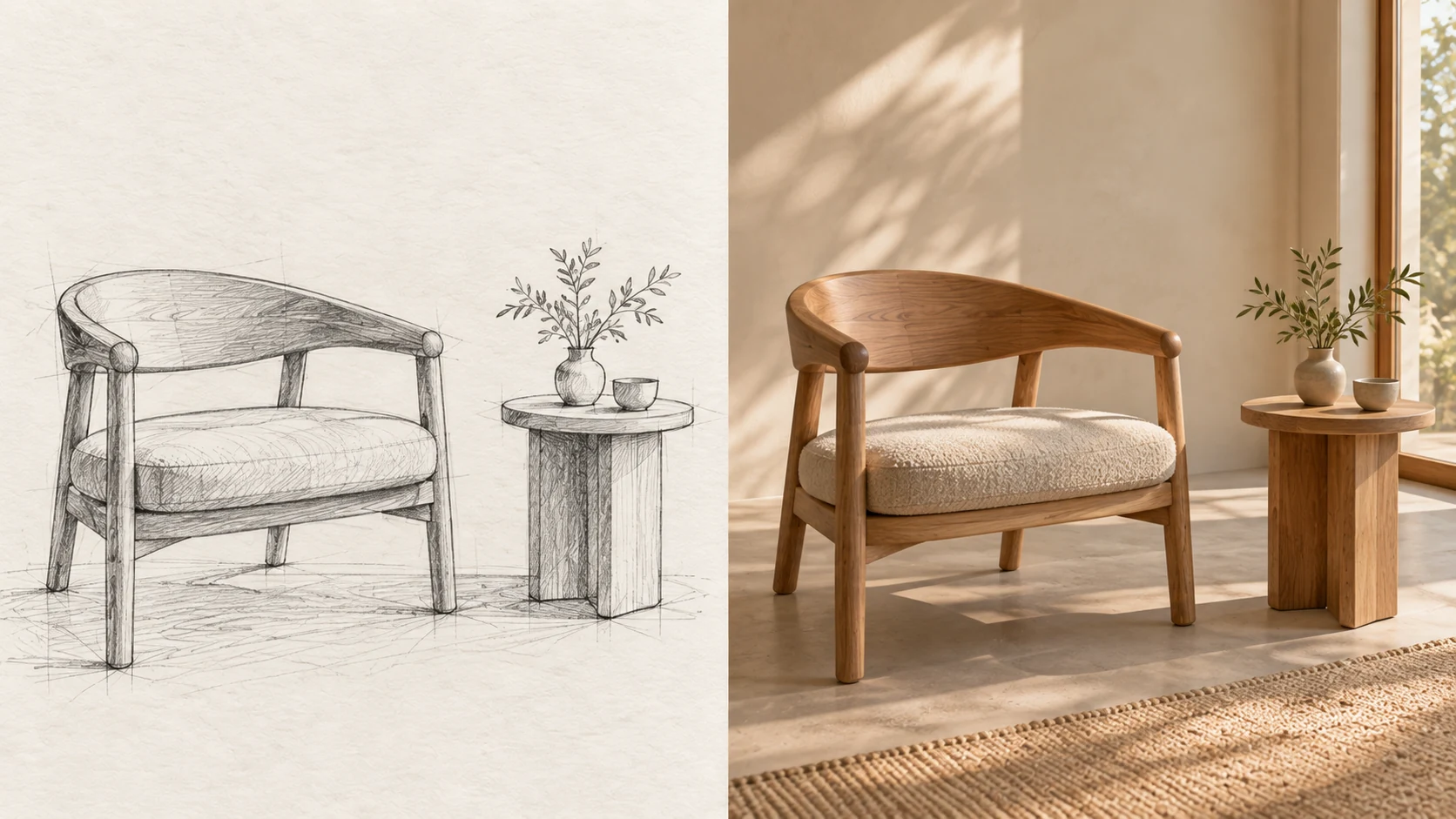
A sketch can hold a strong idea before it has finished surfaces or lighting. Use Bulin 47 AI AI sketch to image with GPT Image 2 reference editing, starting at Auto and 1K. Upload your drawing, explain its important relationships, and use Bulin 47 AI AI sketch to image to explore how the concept might look with materials, depth, and atmosphere.
Image workspace
Sample Image
 16 / 17
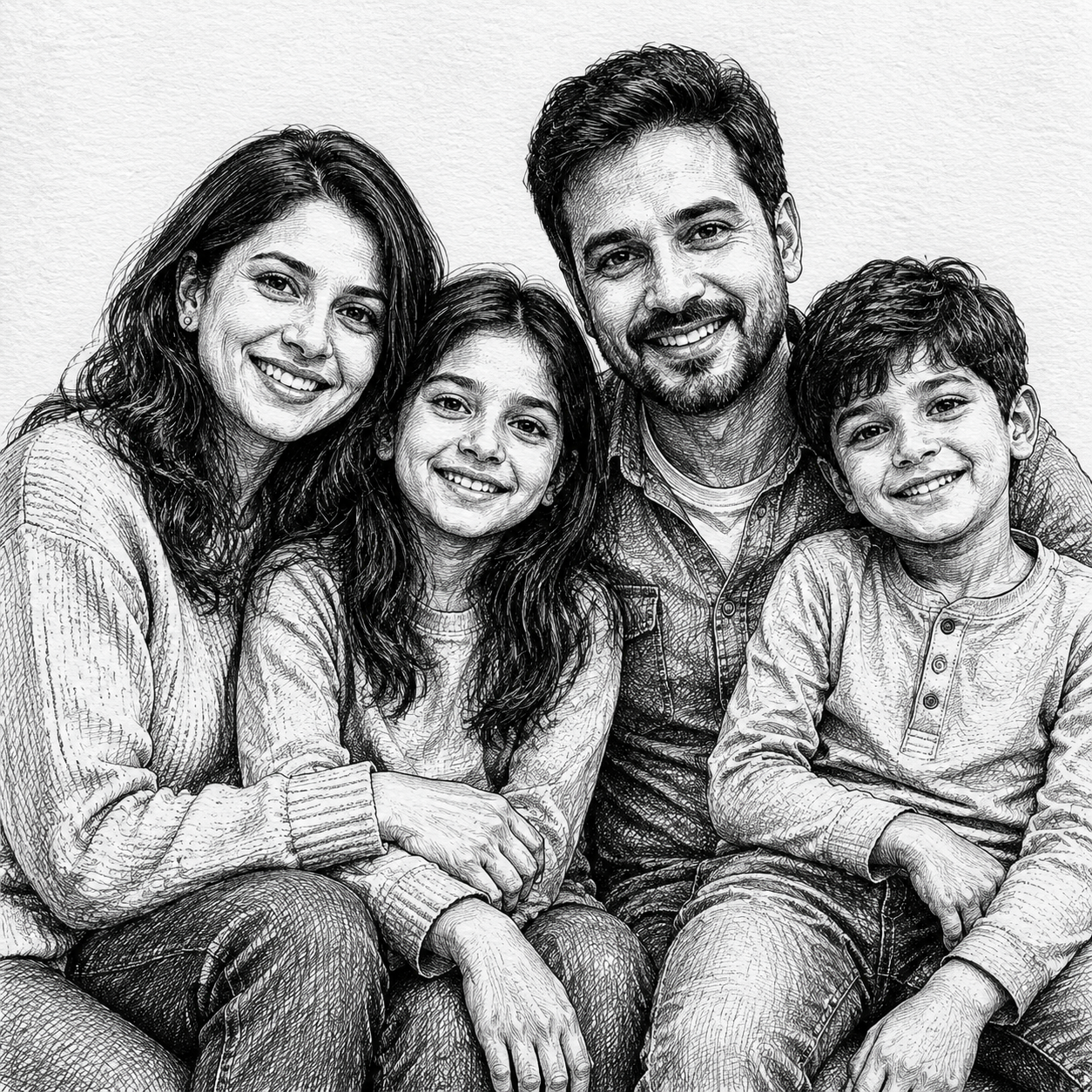
AI-generated sketch-to-render concept, not an Bulin 47 AI test.
Introduction
Start Bulin 47 AI AI sketch to image with a readable drawing
Prepare a readable Bulin 47 AI AI sketch to image reference before adding an ambitious rendering brief.
Bulin 47 AI Separate the idea from background clutter
Photograph or scan the drawing evenly, with the sheet visible and the camera facing it directly. Remove distracting surrounding objects from the source. Bulin 47 AI AI sketch to image needs a clear composition, not an accidental view of your desk, shadows, and unrelated notes.
- Check that faint structural lines remain visible in the uploaded file.
- Give Bulin 47 AI AI sketch to image one clearly framed concept to develop.
Bulin 47 AI Identify the lines that matter
A bold contour may describe the object while lighter strokes explore alternatives. Explain that distinction in the Bulin 47 AI AI sketch to image instructions. Name the chosen outline instead of leaving the model to decide which of several overlapping possibilities represents your intended design.
Bulin 47 AI Resolve ambiguous marks in words
A small circle could be a knob, opening, joint, or decoration. Tell Bulin 47 AI AI sketch to image which meaning applies. A short explanation of an uncertain feature is often more useful than adding a long list of general visual-quality adjectives.
How to use
How to use Bulin 47 AI AI sketch to image
- Input
 Reference image 1STEP 1
Bulin 47 AI Upload the drawing
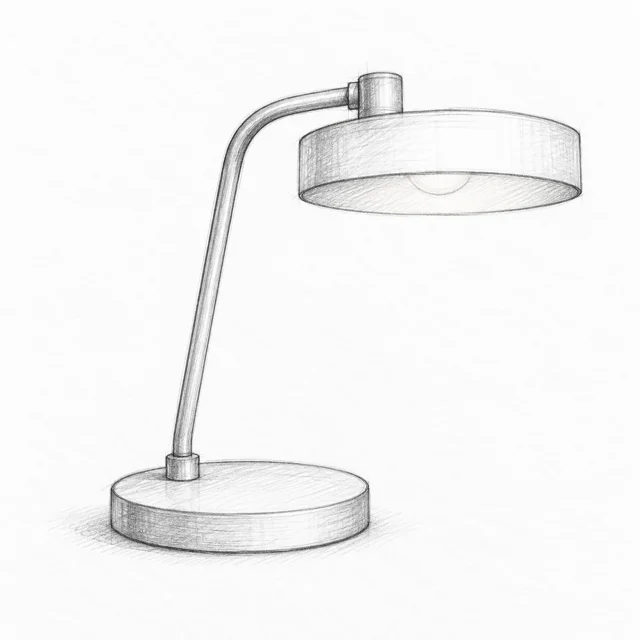
Choose GPT Image 2 reference editing for Bulin 47 AI AI sketch to image and upload a clear drawing with its full composition visible.
- ModelGPT Image 21KPromptOutputSTEP 2
Bulin 47 AI Explain the construction
Tell Bulin 47 AI AI sketch to image which contours and object relationships matter, then describe the materials, lighting, and intended visual treatment.
 BeforeAfterSTEP 3
Bulin 47 AI Render a candidate
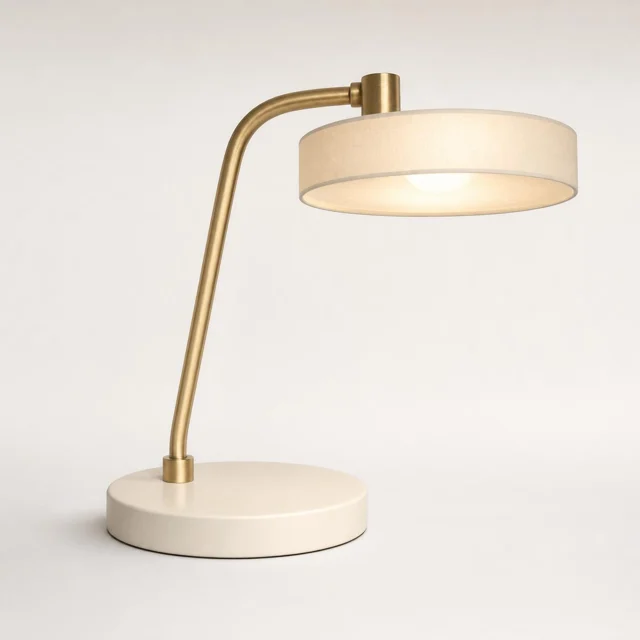
Set 1K and appropriate framing for Bulin 47 AI AI sketch to image, review the displayed credits, and generate a material interpretation of your drawing.
- STEP 4
Bulin 47 AI Compare the geometry
Review Bulin 47 AI AI sketch to image output beside the sketch, checking perspective, positions, and proportions before selecting the most useful concept.
Features
Make Bulin 47 AI AI sketch to image structure explicit
Name the relationships Bulin 47 AI AI sketch to image should develop, including important openings and connections.
Bulin 47 AI Describe what connects to what
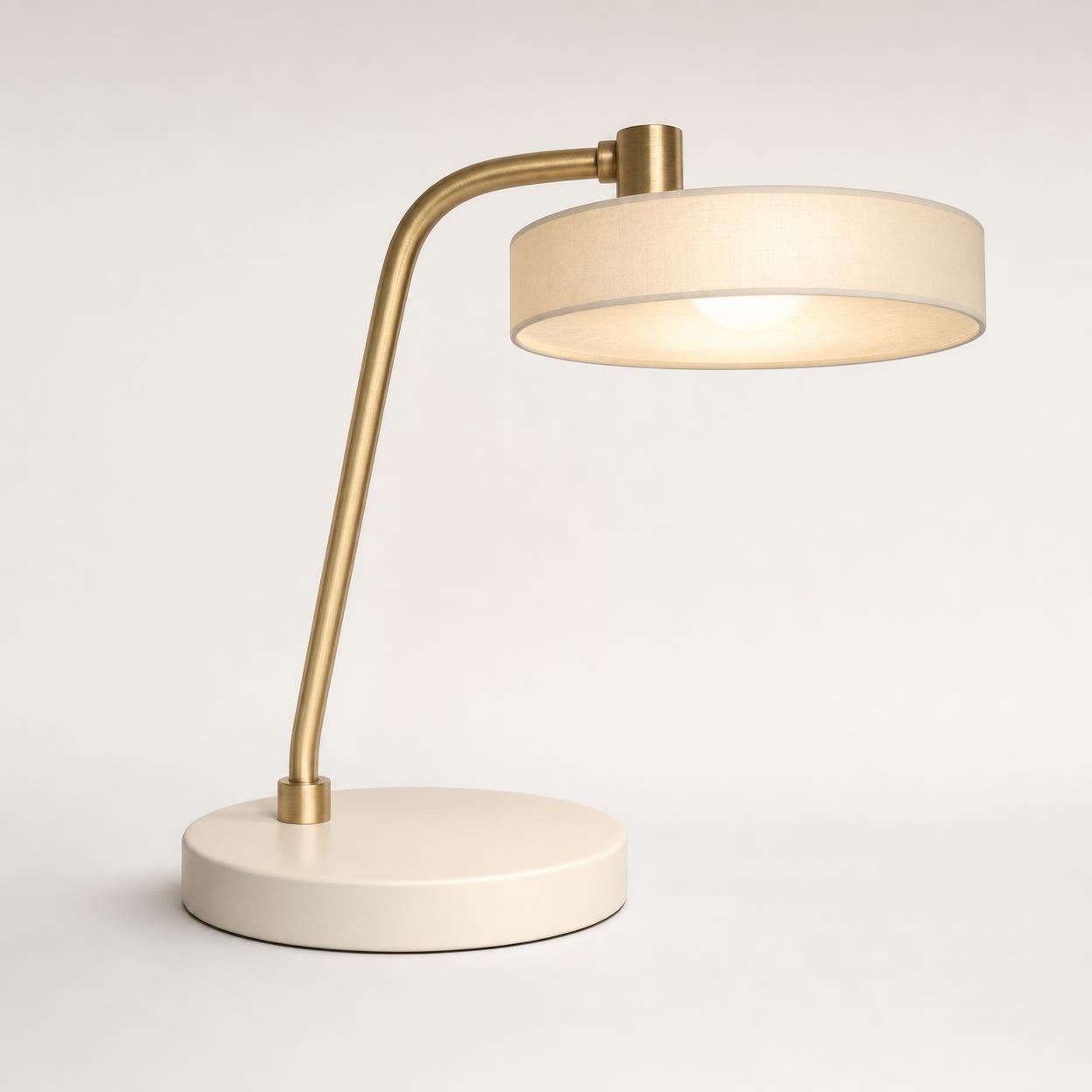
For a desk lamp sketch, explain that the narrow arm joins the circular base and supports one shallow shade. Give Bulin 47 AI AI sketch to image those connections explicitly. Check that decorative treatment does not move the joint or create a second unsupported arm.
- Name the main parts and their relative positions.
- Keep an Bulin 47 AI AI sketch to image reference list of connections worth checking.
Bulin 47 AI State the camera view
An angled drawing may represent a front view with exaggerated depth, or a deliberate three-quarter perspective. Clarify which interpretation you intend. Ask Bulin 47 AI AI sketch to image to keep that viewpoint while adding volume, then compare the placement of major edges with the source.
Bulin 47 AI Explain empty spaces as carefully as solids
The gap beneath a handle or between two supports may define the design more than surface detail. Name that opening in the Bulin 47 AI AI sketch to image brief. Inspect whether it stays clear instead of becoming filled with invented material or background texture.
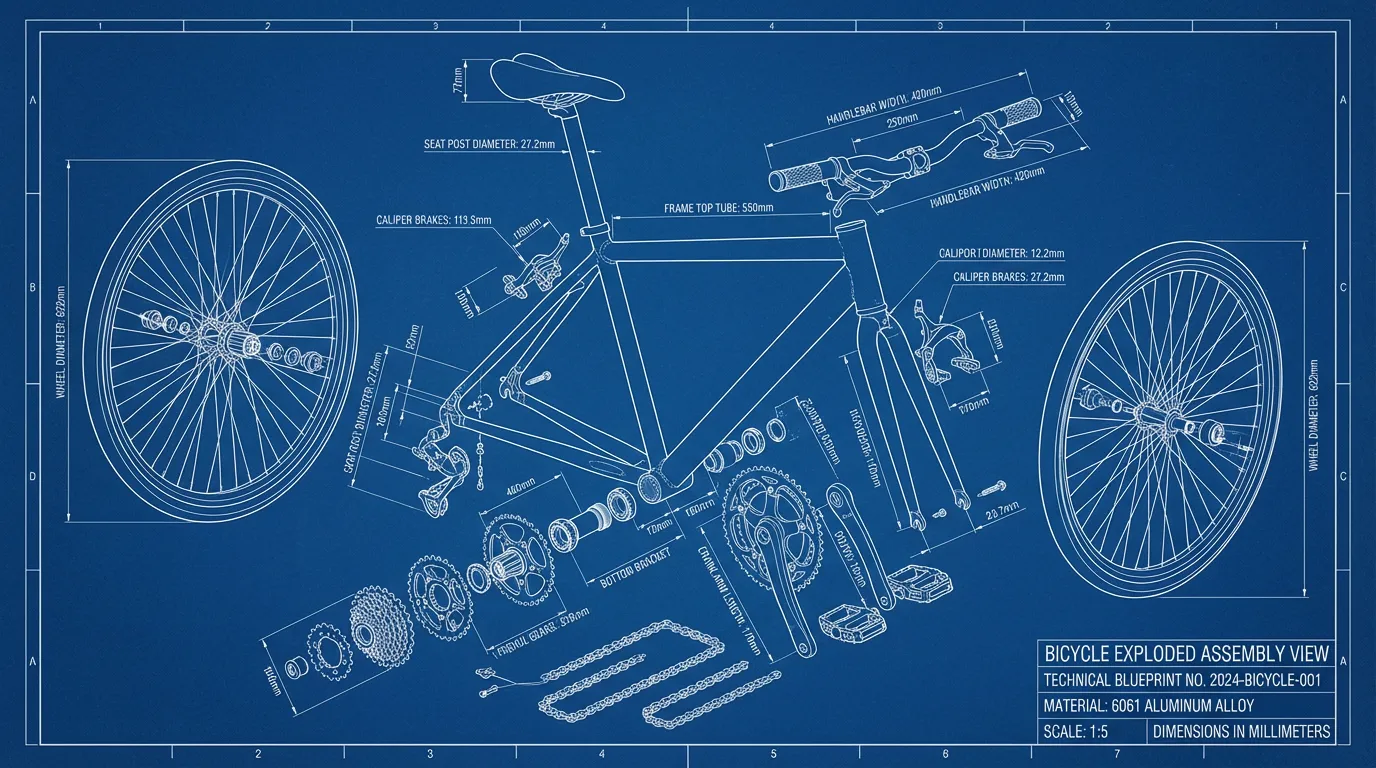
Give Bulin 47 AI AI sketch to image surfaces a coherent treatment
Choose Bulin 47 AI AI sketch to image finishes that clarify the form, with one coherent light direction.
Bulin 47 AI Map materials to named parts
Assign matte ceramic to the lamp base, brushed metal to the arm, and translucent paper to the shade. Bulin 47 AI AI sketch to image instructions become easier to review when each finish belongs to a particular component rather than the entire object being vaguely luxurious.
- Distinguish color from finish: green paint can be matte or glossy.
- Describe Bulin 47 AI AI sketch to image materials where their boundaries meet.
Bulin 47 AI Use light to reveal the form
Request soft side lighting when you want to see the volume without harsh shadows. A shallow highlight can describe a curved surface. Let Bulin 47 AI AI sketch to image explore that treatment while you check whether the light supports the geometry instead of flattening it.
Bulin 47 AI Choose a background that helps comparison
For the first rendering, use a quiet studio surface rather than a busy room. Bulin 47 AI AI sketch to image details are easier to compare when the setting stays secondary. Add a richer environment later, after the shape and material decisions feel convincing.
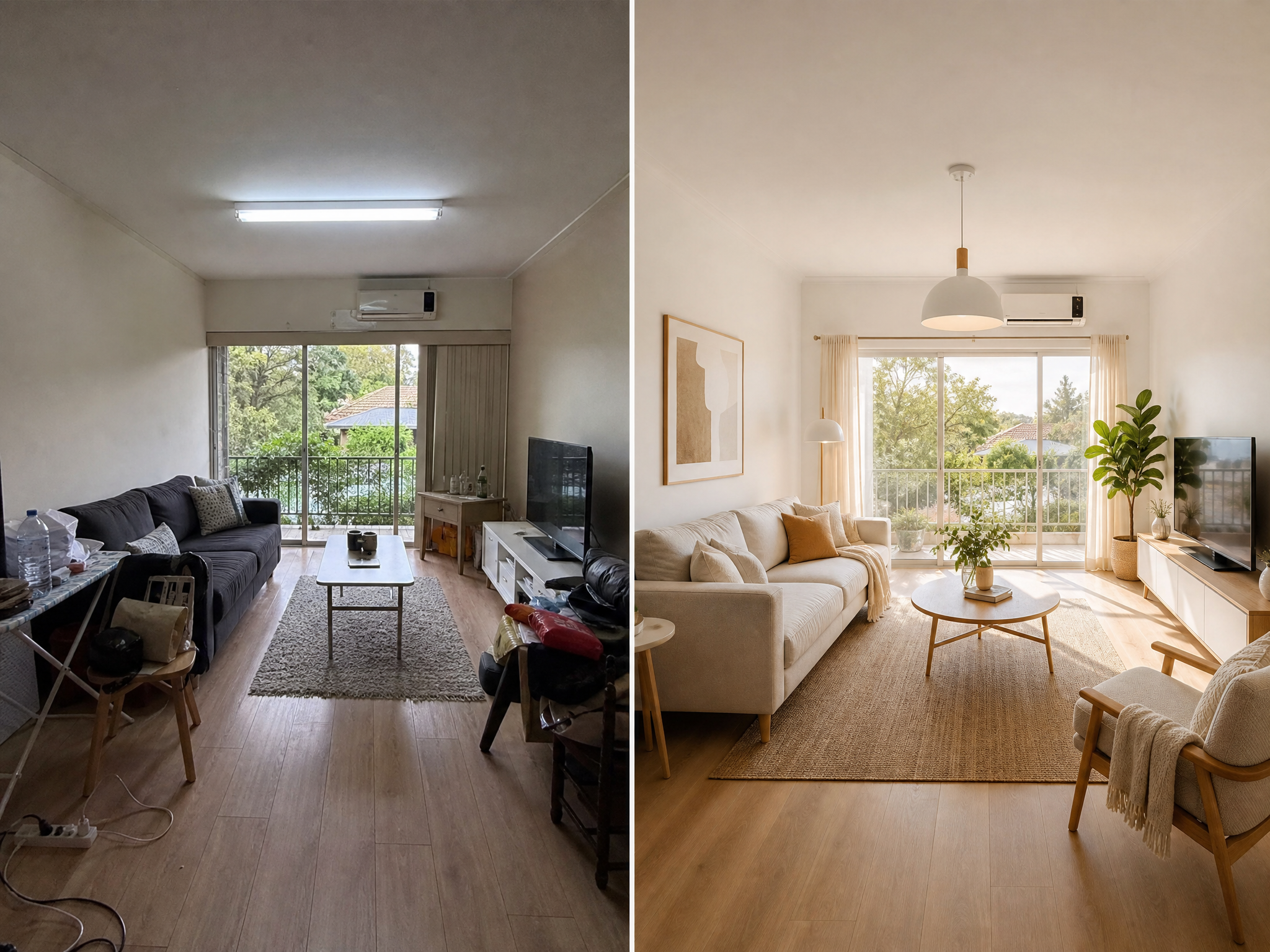
Choose what Bulin 47 AI AI sketch to image should communicate
Give Bulin 47 AI AI sketch to image a destination that explains the required detail and atmosphere.
Bulin 47 AI Develop an object concept
A lamp, travel mug, or small storage cart can become a presentation image that explains its overall form. Ask Bulin 47 AI AI sketch to image for a readable object study. Keep handles, openings, and supports visible rather than hiding unresolved construction behind a dramatic angle.
- Use a simple viewpoint when evaluating the first material study.
- Treat Bulin 47 AI AI sketch to image results as visual concepts, not manufacturing files.
Bulin 47 AI Develop a scene composition
A rough cafe drawing can establish a counter, window, and seated figure before any surface is finished. Tell Bulin 47 AI AI sketch to image which elements lead the scene. Check the major positions before judging upholstery patterns, wall texture, or background decorations.
Bulin 47 AI Develop an illustration direction
A loose landscape sketch may be intended as a painted story illustration rather than a photograph. Say so in the Bulin 47 AI AI sketch to image brief. Specify line visibility, brush texture, and mood while preserving the large shapes that made the drawing effective.
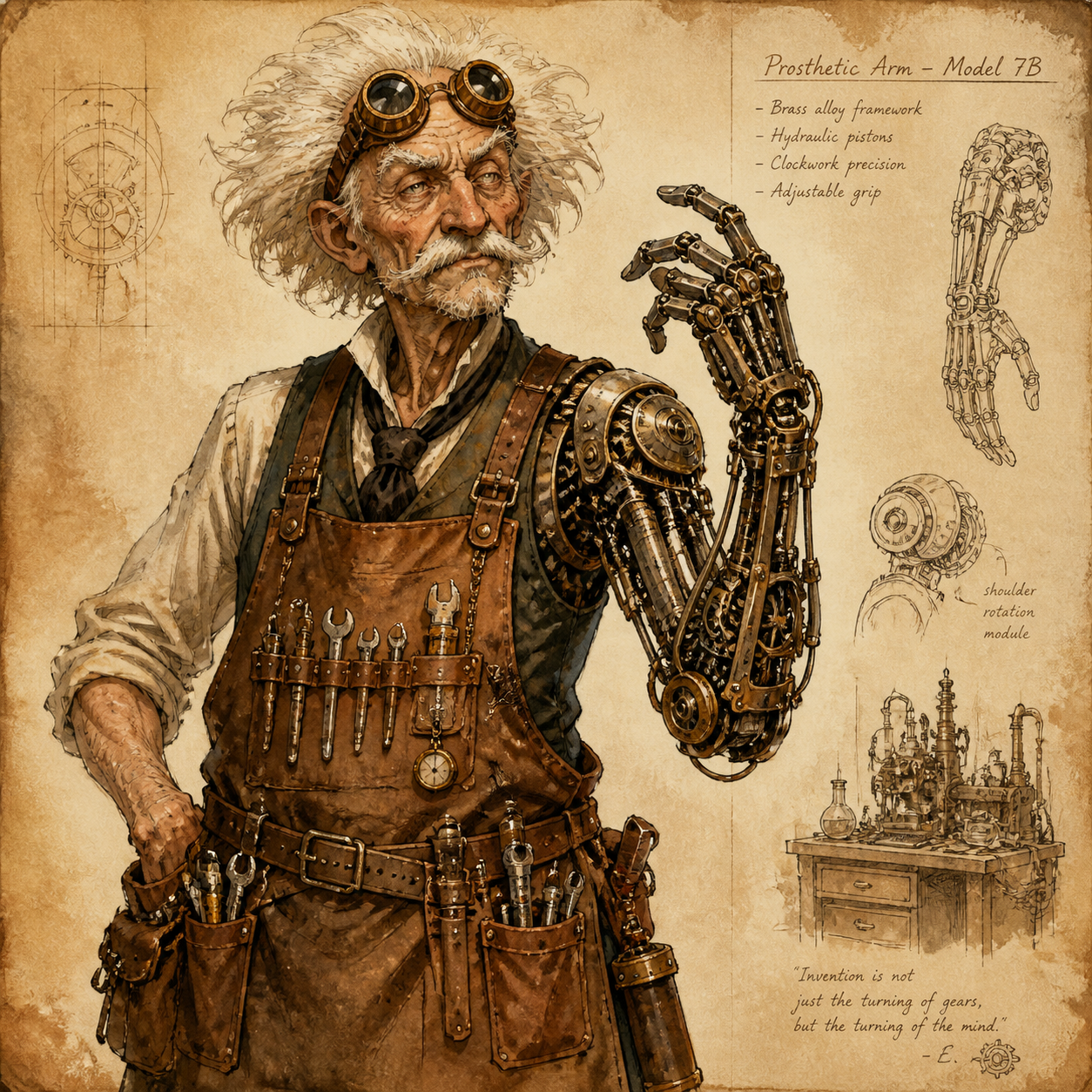
Work through Bulin 47 AI AI sketch to image one decision at a time
Keep the drawing as an anchor throughout each focused Bulin 47 AI AI sketch to image revision.
Bulin 47 AI Upload and write the first instruction
Start with GPT Image 2 image mode at Auto and 1K. Upload the sketch and describe the subject, important structure, and intended finish. Review the displayed credits before submitting Bulin 47 AI AI sketch to image; your chosen output settings determine the amount shown.
- Name what should stay recognizable before describing the new appearance.
- Keep the first Bulin 47 AI AI sketch to image request limited to one treatment.
Bulin 47 AI Add references only for a clear role
Image mode accepts up to sixteen references, but a few purposeful images are easier to explain. Label the sketch as the structure source and another image as a material reference. Bulin 47 AI AI sketch to image should not have to guess which image controls the composition.
Bulin 47 AI Choose useful comparison settings
You can select supported ratios, 1K, 2K, 4K, and one to four outputs. Use Bulin 47 AI AI sketch to image to compare material or lighting options at the same framing. Changing every setting at once makes the strongest design decision harder to identify.
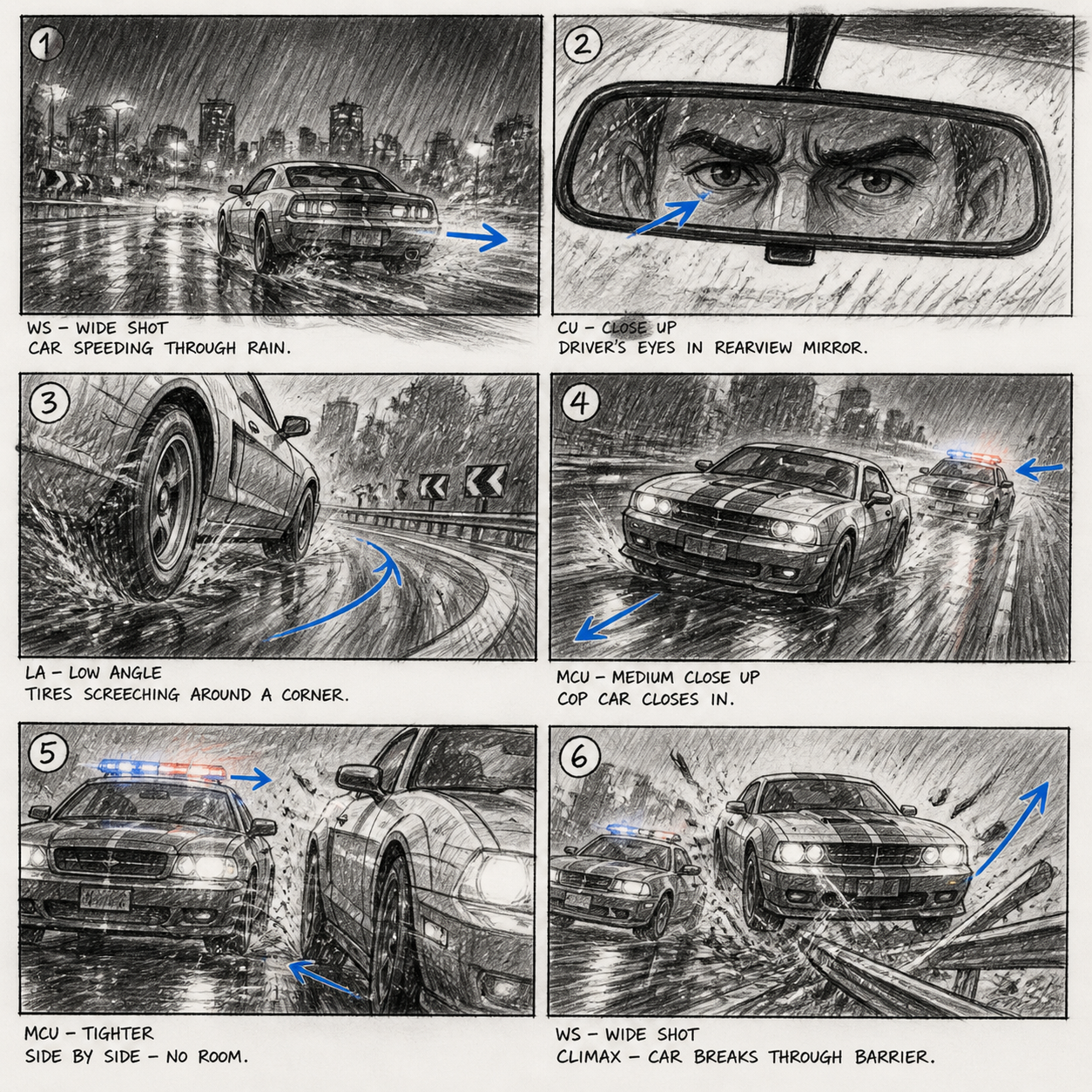
Review Bulin 47 AI AI sketch to image against the original idea
Compare Bulin 47 AI AI sketch to image structure with the original idea before judging surface polish.
Bulin 47 AI Check a short structural list
Count the main components and inspect their height, spacing, connections, and openings against the source. Bulin 47 AI AI sketch to image does not lock every pixel or proportion. Revise a changed silhouette before spending another round improving a minor reflection or background detail.
- Keep the original drawing and candidate visible during review.
- Reject Bulin 47 AI AI sketch to image polish that conceals a structural mismatch.
Bulin 47 AI Revise the most consequential difference
Instead of asking for greater accuracy generally, name the issue: the base became too tall, or the window moved behind the counter. Give Bulin 47 AI AI sketch to image that targeted correction. Keep the useful materials and light while revisiting the disputed relationship.
Bulin 47 AI Carry the decisions into the next stage
Save the original sketch, selected JPEG, and notes about accepted changes. Bulin 47 AI AI sketch to image can help explain a visual direction to collaborators. Exact dimensions, technical drawings, and construction decisions still belong in the appropriate design workflow, not inferred from the rendering.
Example prompts
Bulin 47 AI A lamp sketch as a material study
Use my uploaded lamp sketch as the primary structural reference. Render the same one-lamp concept in its existing three-quarter view: one low circular base, one narrow arm, and one shallow shade, with the connections visible. Make the base matte ivory ceramic, the arm brushed brass, and the shade softly translucent paper. Keep the openings and relative proportions close to the drawing. Quiet pale studio background, soft side light, restrained reflections. Add no extra hinges, cables, decoration, lettering, or props. Prioritize a form I can compare with the sketch.
Bulin 47 AI A cafe sketch as a painted environment
Turn my uploaded cafe composition sketch into a warm editorial illustration. Keep the counter on the left, the large window behind it, and the single round table in the right foreground. Use oak for the counter, pale plaster walls, muted teal upholstery, and late-morning window light. Preserve the broad empty passage between the counter and table. Soft painted textures with lightly visible linework, not a technical drawing or photorealistic render. Do not add new doors, extra tables, signs, text, or people beyond those in the sketch.
User reviews
H3Max video creator feedback.
H3Max creator reviews

I made a full character PV for my game with MiniMax H3 in one afternoon. The menu UI stayed readable in every frame and the character never went off-model. That used to cost me a contractor and three weeks.

We tested every AI video generator on the market for stylized work. H3 is the only one that held our anime style across cuts. We now use it for pitch reels and animatics on every project.

I uploaded four product photos and got a listing video with music and a voiceover the same day. My click-through rate on the new listings is up 38%. H3 even got the label text on my packaging right.

I ship five vertical videos a week for three brands. MiniMax H3 gets me from brief to draft in under an hour, with sound already synced. My old workflow needed a videographer and two review rounds.

The editing side is what sold me. A client wanted the background of an interview changed — I typed one sentence into MiniMax H3 and the lighting on the subject matched the new scene automatically.

I previsualized my entire short film in MiniMax H3 before we shot a single frame. Rack focus, match cuts, even the title cards — it understands director language, not just keywords.
Bulin 47 AI Pricing and Credit Plans
One-time payment · No subscription
Pay per MV
RECOMMENDED$9.90/ MV
- 10 seconds · 720p · Original soundtrack
- Buy now, create whenever you are ready
- No subscription · No automatic renewal
- Failed generations refund $9.90 per failed MV
1 × $9.90$9.90
Your purchase adds MV uses to your account. It does not start a generation or change your credit balance. Taxes and final total appear at checkout.
Already have credits? Each MV uses 600 credits. Subscriptions and credit packs are still available in the tabs above.
Pay safely and securely with


















FAQ
Frequently asked questions
How detailed must an Bulin 47 AI AI sketch to image reference be?
It needs readable main shapes and enough information to explain the intended composition. A rough drawing can work for Bulin 47 AI AI sketch to image when the prompt clarifies uncertain lines and object relationships. A highly detailed sketch still needs review if several versions or annotations overlap.
Will the original lines stay exactly in place?
No pixel or geometry lock is promised. Bulin 47 AI AI sketch to image may change proportions, connections, or camera interpretation while rendering. Compare the major structures with the source and name important corrections explicitly. Use a separate technical workflow when exact dimensions or placement are required.
Can I supply material references with the sketch?
Yes. GPT Image 2 image mode supports up to sixteen references. Tell Bulin 47 AI AI sketch to image which file defines structure and which supplies color, material, or mood. Avoid conflicting examples and inspect whether the result borrows unintended objects or shapes from a secondary reference.
Does it only create realistic photographs?
No. Describe a painted, illustrated, or photographic treatment according to your goal. Bulin 47 AI AI sketch to image can explore different visual directions through your instruction. Make the intended finish explicit so a simple line drawing does not become a photographic object when you wanted a story illustration.
What can I download and use next?
The GPT Image 2 workspace returns JPEG images with supported resolution and ratio choices. Bulin 47 AI AI sketch to image does not export CAD or a dimensioned construction plan. Keep the approved rendering as a visual reference and carry its decisions into your normal design or presentation tools.
CTA
Give Bulin 47 AI AI sketch to image a clear drawing and direction
Upload your sketch, identify its important relationships, and choose one material or illustration treatment. Use Bulin 47 AI AI sketch to image to explore the next version, then compare the structure before carrying the concept forward.
Develop your sketch